Exhibition by jerrlin on Scribd
Thursday, 13 April 2017

how to create blog
How To Create A Free Blog On The BlogSpot Blogging Platform

Having a blog is a great thing because you can share anything you want (…and if you are wise you can also earn a decent income from your blog).
Here at ShoutMeLoud, I have written about many blogging platforms that you can use to create a blog for yourself. I usually suggest creating a blog using your own domain and hosting, and creating your blog via WordPress(.org).
We have talked a lot about self-hosted WordPress blogs in previous posts, and there is no doubt that this presents a better blogging platform when compared to free blogging platforms like BlogSpot.com and WordPress.com.
However, many newbies who want to start blogging don’t want to make an initial investment of funds to create a blog. This is completely reasonable.
There are many blogging platforms which offer users the ability to create free blogs. If you are looking for a simple free blog, my suggestion would be to start blogging with WordPress.com or BlogSpot.com.
Once you have some blogging experience, you can advance and become more professional with a self-hosted WordPress blog.
BlogSpot allows you to create a free blog, but it does have limitations.
However, as I mentioned above, for a beginner it is a great way to learn how to create a blog and begin the blogging process.
This post is dedicated to the “beginners” who are new to blogging and would like to get started by learning the basics involved in the process.
Before I begin the complete tutorial, there are a couple of things you should know:
Step-by-step Guide to Creating a Free Blog on BlogSpot:
To create your free BlogSpot blog site, head over to BlogSpot.com and login using your Google account. If you don’t have a Google (gmail) account, you can create one for free.
For a first time user, you will see an option to use the identity from your Google Plus profile, or you can use your limited BlogSpot profile. I recommend using your Google Plus profile.
Once you are logged in, click on “new blog” or click on this link to directly go there: Create a free blog
Name your blog:
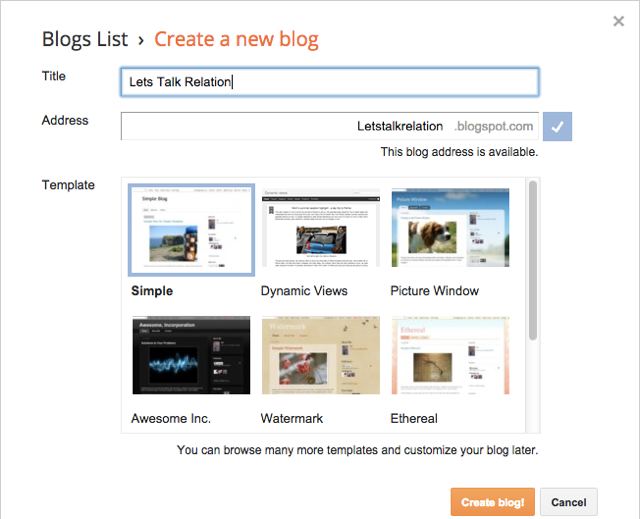
The first thing you need to do is add a name and select your domain. I suggest you read “How To Select a Domain Name” for additional information.
Avoid using your personal name as the domain name, and instead use some generic domain name that you can brand later with a custom domain.
You can then select a blog template (you can change it anytime), and click on “Create Blog”.
Now your blog is created, but you are not done yet!
There are a few settings that you need to set on your newly created BlogSpot blog to make it easy to use.
You are now on the BlogSpot dashboard where you will see your blog’s backend. From here you can go to “Settings” and make changes to improve your blog’s visibility.
Here is a screenshot of what you should be seeing:
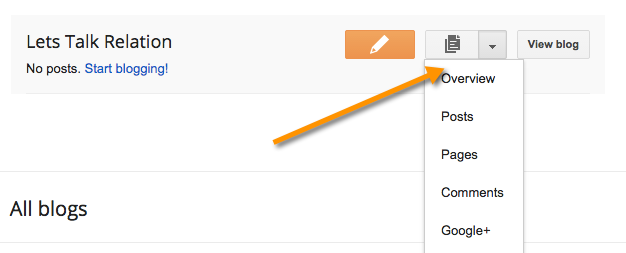
From here you can click on “Posts” > “New post” and start writing your very first blog post!
But before you write your first post, I would recommend that you go to “Pages” and create at least one “About” page describing who you are and what your blog is about.
Most importantly, you should change your blog’s template as the default one is generic and boring (in my opinion).
Here I have compiled a list of free BlogSpot templates that you can download and install on your blog. Alternatively, you can go to “Settings” > “Template” and change the template from there.
On this page, you can also add a logo to the header of your BlogSpot blog, and add or remove various other features.
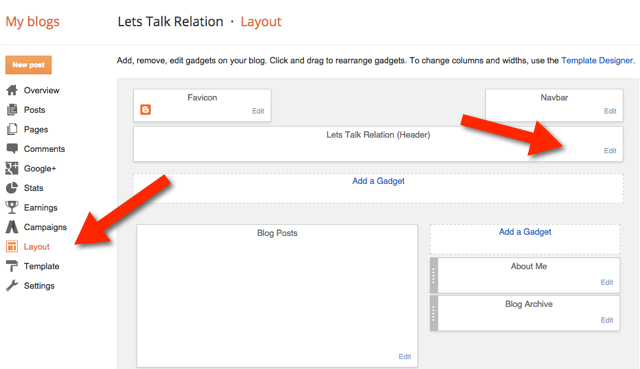
Once you have a few blog posts up and running, you can go to “Settings” > “Earnings” and enable AdSense for your blog. This will allow you to earn money from your free BlogSpot blog.

So your blog is almost ready and you can start writing posts. There are just a few more things I suggest you do
how to use internet
Are you unfamiliar with the Internet? If you want to know how to search the Internet, then you have to find the right search engine, type in your search as accurately as possible, and browse through the results to find the one you want.
Steps
-
1Select a search engine. At the top of any page on your browser (the window that you open to use the internet), type the phrase “search engines” into the Search Bar to attain access to several different internet sites that specifically aid in searching. Common search engines (click one of the links below to access the search engine named):
-
2After typing in whatever you want to search, press the Enter key on the keyboard of your computer.
-
3Choose a few of the most specific or relevant keywords or phrases to describe your topic. Utilize synonyms. Type your choice of words into the Search Bar offered by your chosen search engine.
- Generally, capitalization and punctuation are not needed.
- Search engines usually disregard minor words such as "the, and, to, etc."
-
4Click Search or press the Enter key on your keyboard.
-
5Assess your results. Search through your list of web pages to pinpoint information.
-
6Repeat above steps as necessary.
- Choose a different search engine.
- Choose new search words that are more or less specific.
-
7Use the Advanced Search found on most sites. For example, if you want to go to Advanced Search on Yahoo, go here.
-
8Use the Site Map of a site, if there is one.
-
9It is not correct to assume that your subject is more or less equally visible in all search engines, so it is very important that you use a non-biased search engine (such as Yahoo, DuckDuckGo...). Recent engines sort pages also by rank that is assigned is a complex, ever changing, usually secret way and is different for every search company. Google sorts by who pays them, which means that they feature those sites and you may not get all the information that you need. While engines will likely be "consistent" for a highly popular web sites, less popular web sites may be ranked very differently and it may make sense to try multiple engines.


how to use computer & laptop
-
1Set up your computer. If you are setting up a new desktop computer, there are a few steps you will need to go through before you can start using it. After finding a place near your desk to put the tower, you will need to connect your monitor, keyboard, and mouse, as well as plug the tower into a power source.
- These are the only things required to be connected to the computer in order to use it. You can add more peripherals and accessories later.
- If you are using a new laptop, you will have significantly less to set up. Plug your laptop into a power source to ensure that it is charged, and then power it on to begin.
-
2Create a user account. If you are using the computer for the first time, you will likely be asked to create a user account when you turn it on. This account will hold all of your documents, pictures, downloaded files, and any other files that you create.
- If your computer is in a public setting, you should create a strong password to protect your personal information. This is highly recommended, even if your computer is a home computer.
- This guide will show you how to create a new user account in Windows 7
- This guide will show you how to make a new user account in Windows 8
- This guide will show you how to make a new user account in OS X
-
3Get familiar with the desktop. The desktop is the main work area of your computer, and will likely be the most visited area of your computer. Your desktop appears every time you log into your account, and contains icons and shortcuts to your most used programs and files. The desktop will look and function differently depending on which operating system you use.
- Windows operating systems (except Windows 8) are characterized by the Start menu in the lower-left corner of the desktop. The Start menu allows you to quickly access your installed programs and settings.
- Windows 8 has replaced the Start menu with the Start screen. It functions much the same way, but is fundamentally different in the way it displays information.
- OS X allows you to use multiple desktops to keep things organized and under control. See this guide for details on how to take advantage of multiple desktops.
-
4Learn mouse and keyboard basics. The mouse and keyboard are your primary means of interacting with your computer. Take some time to get familiar with how they work and how you can interact with your operating system and programs.
- Learn how to use a mouse to navigate. Your mouse allows for pinpoint navigation and control, and is necessary for a wide variety of activities. Getting familiar with how to use the mouse will go a long way towards making you a more proficient computer user.
- Practice some keyboard shortcuts to improve your work flow. Keyboard shortcuts are combinations of keyboard keys that perform a function in the program or operating system you are using. For example, in most programs that allow saving files, pressing Ctrl+S (⌘ Cmd+S on a Mac) will automatically save your current file.
-
5Launch some preinstalled applications. Even if you built your computer yourself, there will be some preinstalled applications and utilities that you can use without having to install anything additional. If you are using Windows, click the Start menu and browse through your available programs. If you are using a Mac, check your Dock and Applications folder.
-
6Install your first program. Installing software is a very common task on a computer, no matter what kind of computer you are using. The process is usually very straightforward, as most installers give clear instructions for each step.
- Installing Microsoft Office is a good place to start if you are using a Windows computer. Having access to a word processor is invaluable, and is one of the main purposes of many people's computers. Many Windows computers come with a trial version of Office already installed.
- Installing software on a Mac is a little bit different than installing on a Windows PC. This is mainly due to the underlying structure of the Mac operating system. Many Mac users find installing and managing programs much easier on OS X instead of Windows.


Subscribe to:
Posts (Atom)